
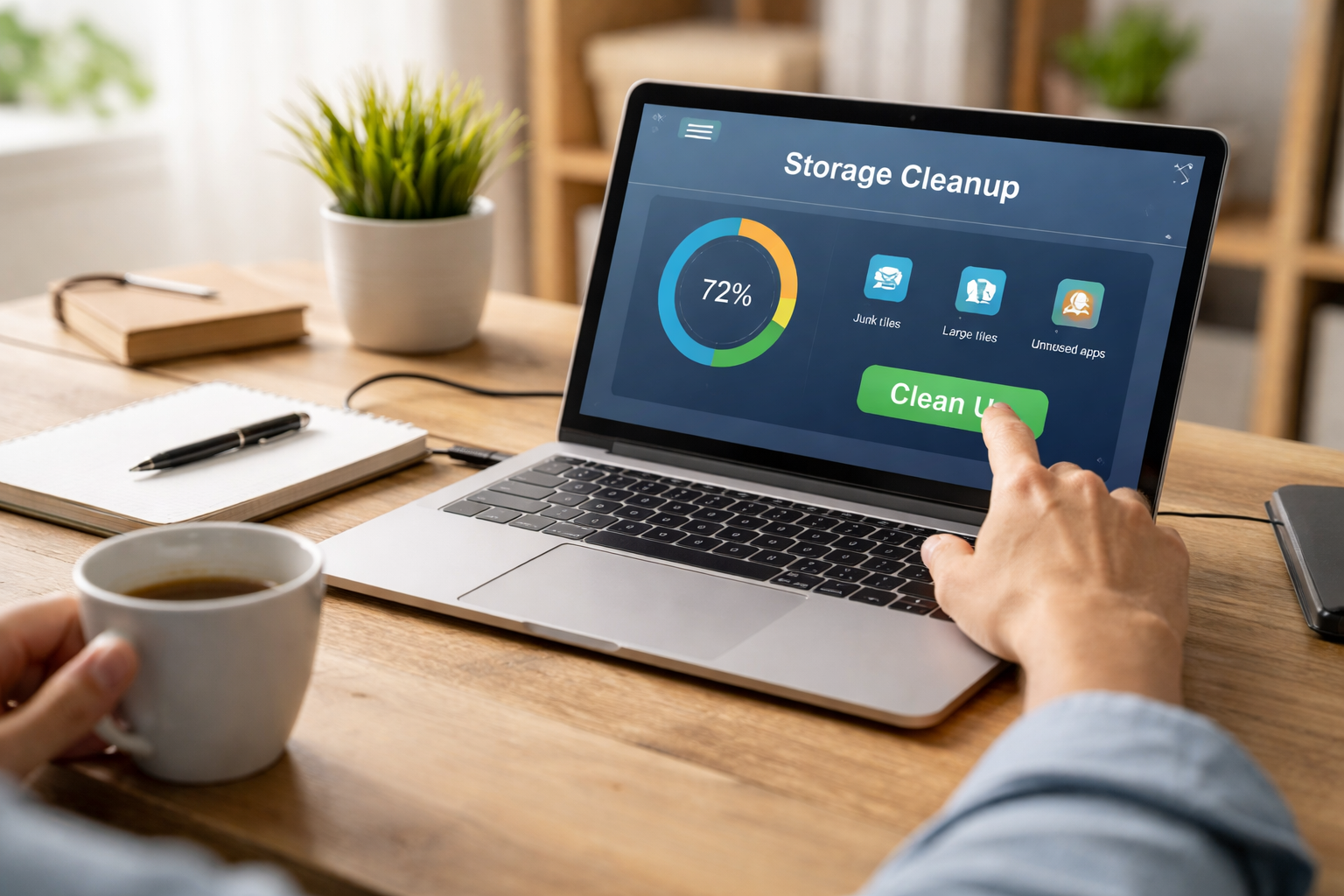
Most of us do not notice laptop storage until something goes wrong. Apps freeze. Updates fail. Files take forever to open. In many homes and offices, laptops are pushed hard for years with very little maintenance. I have seen perfectly good machines blamed for problems that came down to one simple issue: storage packed to the edge.
What surprised me early on was how small changes made a big difference. Cleaning laptop storage is not about deleting everything you own. It is about giving your system enough space to breathe so it can do its job without tripping over itself.
Why Cleaning Laptop Storage Improves Speed And Stability
Operating systems need free space to manage updates, cache files, and recover from errors. When storage is nearly full, even basic tasks start to fail. A healthy rule followed by most tech support teams is keeping 15 to 20 per cent of your total drive free at all times. That buffer helps reduce crashes, slow boot times, and file corruption.
When people ask how to clean laptop storage, they often expect a single magic fix. In reality, performance improves when small cleanup steps work together. Less clutter means fewer background tasks, faster file access, and fewer errors during updates.
Check What Is Actually Taking Up Space

Before deleting anything, take a clear look at your storage usage. Both Windows and macOS make this easy, and this step alone often changes how people clean their laptops.
On Windows 10 or 11, open Settings, go to System, then Storage. You will see a breakdown by category. On a Mac, open System Settings, choose General, then Storage. These views highlight large apps, system files, and forgotten downloads that quietly eat space.
Seeing the data removes guesswork. It also prevents deleting files that do not matter while missing the real problem.
Remove Temporary And System Junk Safely
Temporary files build up fast. Update leftovers, logs, and cached system data serve a purpose for a short time, then become dead weight.
Windows users can rely on Disk Cleanup or enable Storage Sense, which automatically clears temporary folders and the Recycle Bin on a schedule. macOS users can use the built-in Storage Management tool to remove system junk safely.
This step alone often frees several gigabytes and immediately improves responsiveness, especially on laptops used daily for work or school in the U.S.
Uninstall Applications You No Longer Use

Unused applications are one of the biggest hidden storage drains. Many sit quietly while running background services, slowing your laptop even when you are not using them.
Sort applications by size and usage. You will often find older software, trial programs, or duplicate tools installed years ago. Removing these cleans storage and reduces startup load.
This is one of the safest answers to how to clean laptop storage without risking personal files.
Clear Browser Cache And Offline Data
Browsers store massive amounts of cached images, cookies, and offline data. Over time, this slows browsing and contributes to storage pressure.
Clearing browser data once a month keeps things lean. Most browsers let you remove cached files while keeping saved passwords and bookmarks. For people working remotely or studying online, this step noticeably improves performance.
Move Large Media Files Off Your Laptop

Photos and videos are storage-heavy, especially high-resolution files from modern phones. Moving them off your main drive keeps your laptop fast without deleting memories.
Good options include cloud services widely used in the U.S., like Microsoft OneDrive or iCloud, as well as external drives. The goal is access without permanent storage on your laptop.
Helpful options for handling large files include:
- Cloud storage syncs only when needed
- External solid-state drives for fast access
- Archiving older media to a secondary device
This is one of the few areas where a short list actually helps clarity.
Fix Errors That Slow Everything Down
Storage problems are not only about space. Errors on the disk can slow performance and cause system crashes.
Windows users can run the CHKDSK tool to scan and repair file system issues. macOS handles most repairs automatically, but Disk Utility can check for errors if problems persist.
Another overlooked step is startup optimization. Disable unnecessary apps from launching at boot. Fewer startup processes mean faster logins and fewer background errors.
Know The Difference Between HDD And SSD Maintenance

Not all storage behaves the same. Older laptops may still use traditional hard disk drives, while most modern systems use solid-state drives.
If your laptop has an HDD, occasional defragmentation can improve file access speed. If it uses an SSD, never defragment it. SSDs manage data differently, and defragmenting can shorten their lifespan.
Understanding this difference prevents well-intentioned mistakes when cleaning laptop storage.
Check For Malware And Background Drain
Malware consumes storage, creates errors, and slows systems dramatically. In the U.S., Windows Security provides strong built-in protection, and macOS includes background safeguards as well.
Running a full system scan during storage cleanup is smart. It ensures that the space you free stays free and that errors do not return.
Build A Simple Maintenance Habit

Cleaning storage once helps, but habits keep laptops healthy long-term. A monthly digital cleanup works better than emergency fixes when storage hits zero.
If space still runs out after consistent cleanup, it may be time to consider a larger solid-state drive or additional memory. Hardware upgrades often extend a laptop’s life by years.
Frequently Asked Questions (FAQ’s)
1. How Often Should I Clean Laptop Storage?
Monthly maintenance works well for most users. Heavy users may benefit from biweekly checks.
2. Is It Safe To Delete Temporary Files?
Yes. Built-in system tools remove only files that are no longer needed.
3. Does Cleaning Storage Really Improve Speed?
Yes. Free space allows your system to manage files efficiently and reduces errors.
4. Should I Use Third-Party Cleanup Software?
Built-in tools are usually enough. Third-party tools should be used cautiously.
Final Thoughts
Learning how to clean laptop storage is less about technical skill and more about awareness. When you understand what fills your drive and why free space matters, performance issues make sense. Most slowdowns and errors I see are preventable with simple, consistent care. Storage cleanup does not need to be dramatic. It needs to be regular and intentional.
Treat your laptop like a workspace. Keep it organized, give it room to function, and it will stay fast and reliable much longer.